
POS Cash Drawer Buying Guide: Printer-Driven vs USB vs Manual, RJ11/RJ12 Cables and Sizing
How to choose a POS cash drawer — printer-driven (RJ11/RJ12 kick) vs USB direct-connect vs manual, why POS-grade cables matter, sizing the bill and coin layout, build quality, and matching it to your receipt printer.
The quick chooser
A cash drawer is the simplest part of a POS lane — and the one people most often buy wrong. Get three things right and it just works: the connection type, the cable, and the size. Quick orientation:
| If your setup is… | Choose | Why | |
|---|---|---|---|
| A fixed till with a receipt printer | Printer-driven (RJ11/RJ12) | Opens on the printer's 24V kick — simplest, most common | — |
| Tablet POS / no kick-capable printer | USB direct-connect | Opens via driver/POS software | — |
| Back-up / low-tech counter | Manual push-open | No electronics; open by key or button | — |
Connection types compared
The three ways a drawer connects, side by side:
| Printer-driven | USB direct | Manual | |
|---|---|---|---|
| Connects to | Receipt printer's kick port | POS PC / tablet host | Nothing (standalone) |
| Opens via | 24V kick when receipt prints | Driver / POS software | Key or push-button |
| Cable | RJ11 (6P4C) / RJ12 (6P6C) | USB | — |
| Best for | Fixed tills with a printer | Tablet/cloud POS | Backup or manual lanes |
| Watch out for | Cable pinout & 12V vs 24V | Driver/utility setup | No transaction-linked open |
How the printer-driven 'kick' works
The printer-driven setup is worth understanding because it’s the one most tills use and the one most setup errors come from. The receipt printer has a drawer-kickport; at the end of a sale it fires a ~24VDC pulse down the RJ11/RJ12 cable, energising the drawer’s solenoid, which releases the latch and a spring pops the drawer open.
Two things must agree for this to work: the cable’s pinout (POS-grade, not a phone cable) and the drawer’s voltage (most are 24V, some 12V) versus what the printer kicks. Get either wrong and the drawer either won’t open or opens unreliably.
Sizing and build quality
Once the connection is settled, size and build decide whether the drawer survives daily abuse and fits your counter:
| Factor | What to choose | |
|---|---|---|
| Footprint | Compact ~13 in for tight/tablet counters; ~16 in standard for most retail | — |
| Bill compartments | 4–5 for most currencies; more for multi-denomination/currency | — |
| Coin cups | 5–8 removable cups; match your coin set | — |
| Construction | Steel front & frame; roller-bearing slide for smooth, durable opening | — |
| Lock | Multi-position (open / online / locked) for cash control | — |
| Media slot | Add one if you accept cheques or large notes under the till | — |
Choosing by setup
A short path from your setup to the right drawer:
- 1
Do you have a kick-capable receipt printer?
Most do — a drawer-kick (RJ11/RJ12) port. If yes, choose a printer-driven drawer. If your POS is tablet-based with no kick port, choose USB. - 2
Match the voltage
Confirm the printer kicks 24V (most common) or 12V, and pick a drawer rated for the same. Mismatched voltage opens unreliably or not at all. - 3
Size it
Pick the footprint that fits your counter and the bill/coin layout that matches your cash volume and currency. - 4
Pick the build and lock
Steel front, roller-bearing slide, and a multi-position lock for a busy till. Add a media slot if you take cheques or large notes.
Cables, setup and what to source
To get it running and keep it running, order and check these:
| Item | Note | |
|---|---|---|
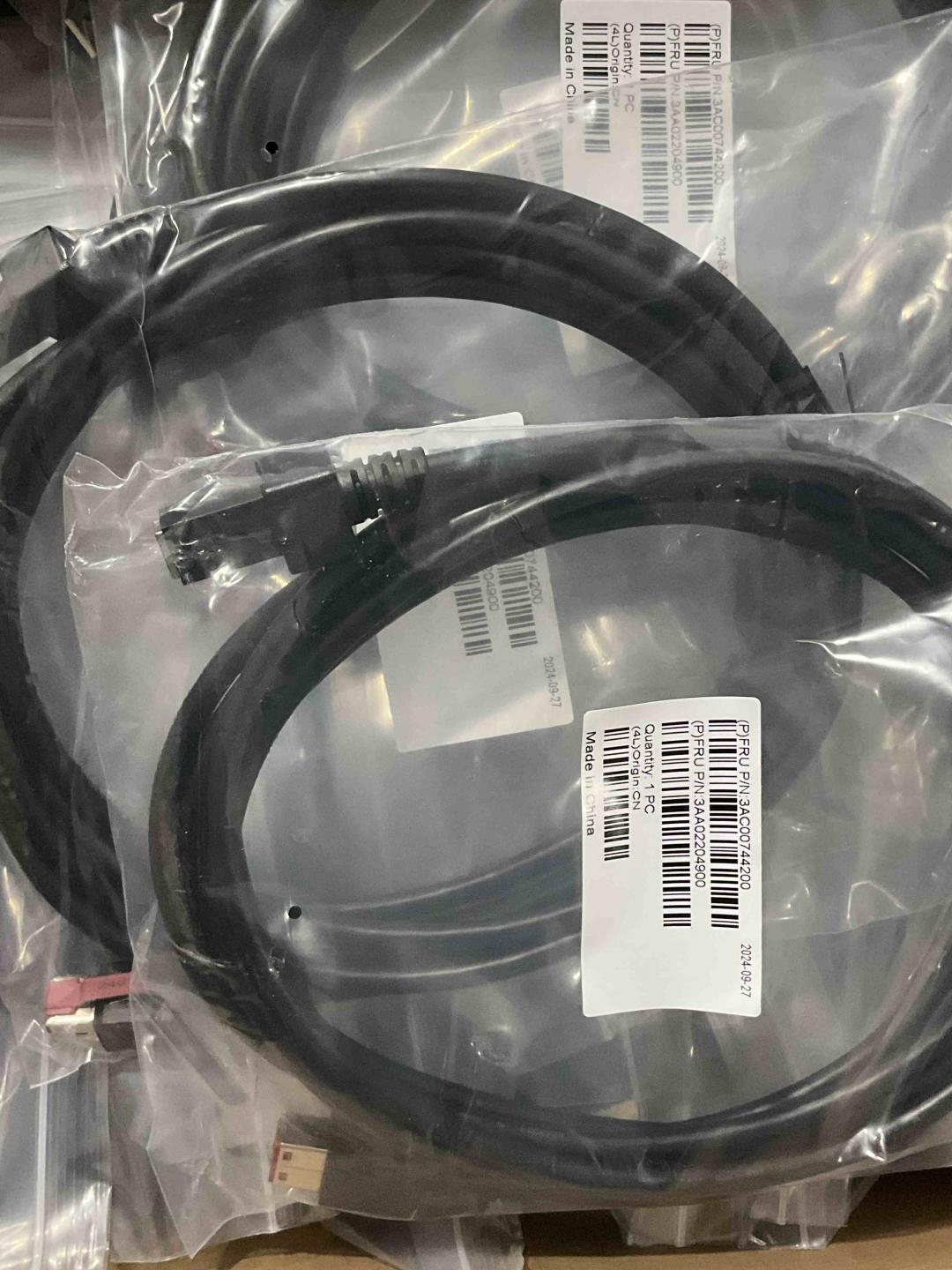
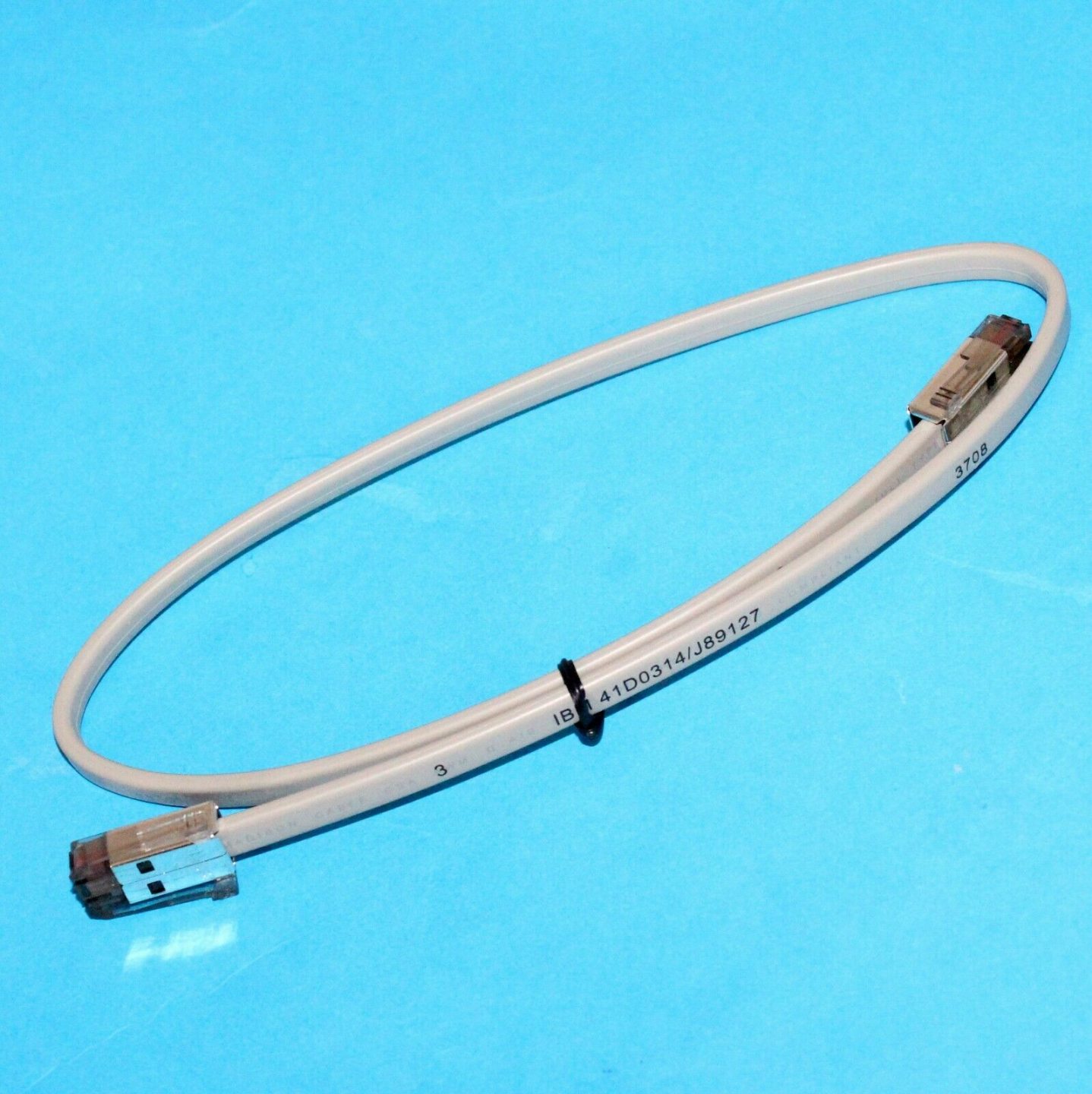
| Drawer-kick cable | POS-grade RJ11/RJ12 wired for your printer + drawer (not a phone cable) | — |
| Correct printer port | Plug into the drawer-kick port, not a phone/network jack | — |
| POS kick setting | Enable the drawer-kick in the printer/POS config; test with a no-sale open | — |
| Spare lock & keys | Keep spares; locks and keys are common loss items | — |
| Spare coin tray | Removable trays wear and crack — easy to replace | — |
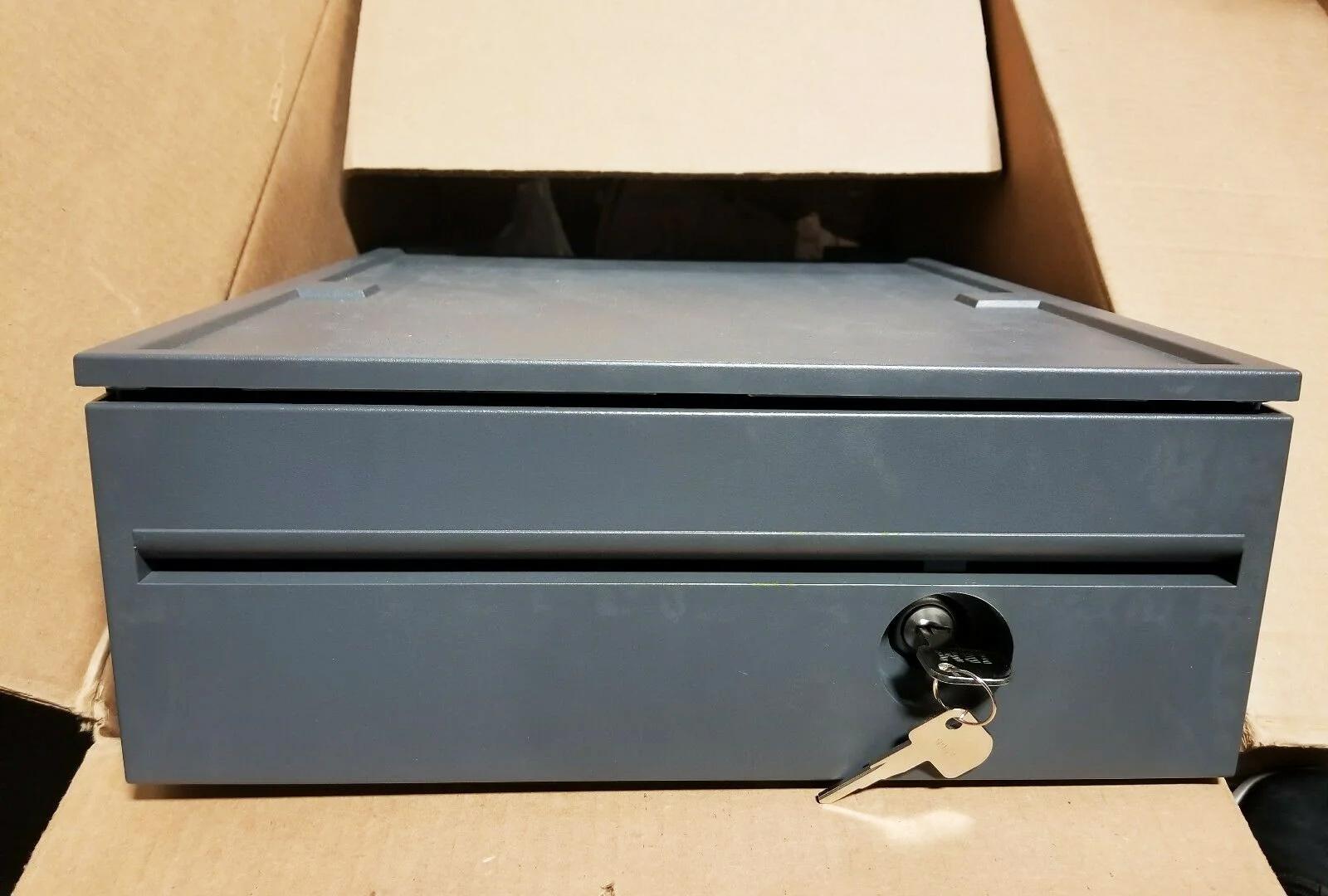
Browse cash drawers and spares in our cash drawer & parts category, and drawer-kick cables in cables & connectors. If a correctly-bought drawer won’t open, our cash-drawer troubleshooting guide walks the full diagnosis, and the printer interface guide covers the printer side. Tell us your printer model and we’ll match a compatible drawer and cable before you order.
Frequently Asked Questions
What's the difference between a printer-driven and a USB cash drawer?
Can I use a regular phone/Ethernet cable for the cash drawer?
Will any cash drawer work with my receipt printer?
What size cash drawer do I need?
What should I look for in build quality?
My cash drawer won't open — is it the drawer or the setup?
Sources & further reading
Related guides
All-in-One vs Modular POS Terminals: Which to Buy (and How Each Affects Repairs)
All-in-one is tidy and fast to deploy; modular is flexible and cheaper to upgrade and repair. The right answer depends on your size, growth plans — and how you want failures handled. Here's the honest comparison.
Read guide →Barcode Scanner Buying Guide: 1D Laser vs 2D Imager, Corded vs Wireless, Handheld vs Hands-Free
Two questions decide most of it: do you need to scan phone screens (then 2D), and is your counter busy enough to want hands-free? Here's how scanner technology, form factor and connection map to real retail use.
Read guide →Receipt Printer Auto-Cutters: Guillotine vs Rotary, Partial vs Full Cut, and Blade Life
Guillotine or rotary? Partial or full cut? The cutter is the most-used moving part in a receipt printer — choosing the right type and cut mode keeps the lane fast and the receipts tidy. Here's how they differ.
Read guide →Related categories
Featured parts in this guide
Need the parts mentioned in this guide?
Genuine OEM and quality-tested aftermarket parts for IBM, Toshiba, NCR, Diebold, Wincor and Hyosung systems — with worldwide shipping.