
POS Terminal Powers On But Won't Boot? POST, Beep Codes, RAM, CMOS and Storage Diagnosis
A field guide to a POS terminal that powers on but shows no display or won't boot — reading the boot sequence and POST beep codes, reseating RAM and storage, clearing CMOS, and isolating the faulty part before you replace the mainboard.
The fast triage
A POS terminal with spinning fans and lit LEDs but a black screen looks dead, but it isn’t — those signs prove the power supply works. The terminal is stuck somewhere in the boot sequence, almost always at POST (the power-on self-test), and the cause is usually a cheap, reseatable part: RAM, the CMOS battery, storage, or a stuck peripheral. Work the suspects cheapest-first:
| Do this | What it rules out | |
|---|---|---|
| 1. Connect an external monitor | Tells you if it's the display path vs the terminal itself | — |
| 2. Unplug all USB peripherals | A faulty USB device can hang POST entirely | — |
| 3. Reseat / swap RAM | Loose or failed memory — the #1 no-boot cause | — |
| 4. Clear CMOS / replace its battery | Bad BIOS config or a dead coin cell | — |
| 5. Reseat storage, then suspect the board | A loose drive; mainboard is the last resort | — |
The boot sequence — where it's stuck
Booting happens in stages. Knowing which stage it reaches tells you which parts are already proven good and which to suspect:
- Stops at stage 1 (no fans/LEDs): power — see the power-supply guide.
- Stage 2, beeps, black screen: POST failed — usually RAM, sometimes CMOS or the board.
- Stage 3, beeps OK but no image: the display path — test an external monitor.
- Reaches stage 4–5 then hangs/loops: storage, OS or BIOS config — reseat the drive, clear CMOS.
Reading POST beep and LED codes
Before it can show anything on screen, the terminal reports POST failures as beep codes (or, on some boards, a blinking LED pattern). The exact codes vary by BIOS, so check your terminal’s table — but these patterns are near-universal starting points:
| Pattern | Usual meaning | First action | |
|---|---|---|---|
| No beep, no display | PSU, board, or no POST at all | Confirm power; remove peripherals; reseat RAM | — |
| Repeated / continuous beeps | Memory not detected | Reseat or swap RAM, one stick at a time | — |
| Two short beeps, black screen | RAM detection error | Reseat/test each RAM module | — |
| Beeps then image fails | Graphics / display path | Test an external monitor | — |
| One beep, then hangs/loops | POST OK — storage or OS | Reseat drive; check boot order / clear CMOS | — |
Step-by-step: isolate the faulty part
Work the sequence in order, powering off and unplugging before you touch anything inside. Each step proves a component good so you only replace what’s actually failed.
- 1
Test the display path
Connect an external monitor (HDMI/VGA/DP as available). If the external screen shows POST or BIOS, the terminal is booting and the fault is the built-in display or its cable — not the board. - 2
Strip back to essentials
Unplug every non-essential USB peripheral — external drives, hubs, scanners, printers. A single faulty device can hang POST. Try to boot, then add devices back one at a time to find the culprit. - 3
Reseat and test RAM
Power off and unplug. Remove and firmly reinsert each RAM module. With multiple sticks, boot with just one at a time in different slots to isolate a failed module — memory is the most common no-boot cause.Caution: Touch a bare metal point to discharge static before handling RAM or the board. - 4
Clear CMOS and check the battery
Follow the board’s clear-CMOS procedure (jumper, or briefly remove the coin cell) to reset BIOS to defaults. If the coin-cell battery is old, replace it — a dead one causes boot and clock faults. - 5
Reseat storage, then judge the board
Reseat the SSD/HDD/M.2 and its cable, and check the BIOS boot order. If a confirmed power supply, known-good RAM and a cleared CMOS still won’t POST, the mainboard is the fault — match a replacement to your terminal model.
Symptom-to-cause at a glance
A quick map from what you observe to the part to suspect first:
| Symptom | Most likely cause | |
|---|---|---|
| Fans on, black screen, beeps | RAM (reseat/swap first) | — |
| Boots only sometimes / random | Loose RAM or storage, or failing CMOS battery | — |
| Wrong date/time, settings reset | Dead CMOS coin-cell battery | — |
| Hangs on a logo or loops | Storage/OS fault or BIOS boot-order config | — |
| Black screen, beeps OK | Display path — test external monitor | — |
| Nothing after known-good RAM + clear CMOS | Mainboard (last resort) | — |
Sourcing RAM, storage, CMOS battery and mainboards
Most no-boot repairs are an inexpensive part, not a new terminal. Match replacements on these specs:
| Part | How to match | |
|---|---|---|
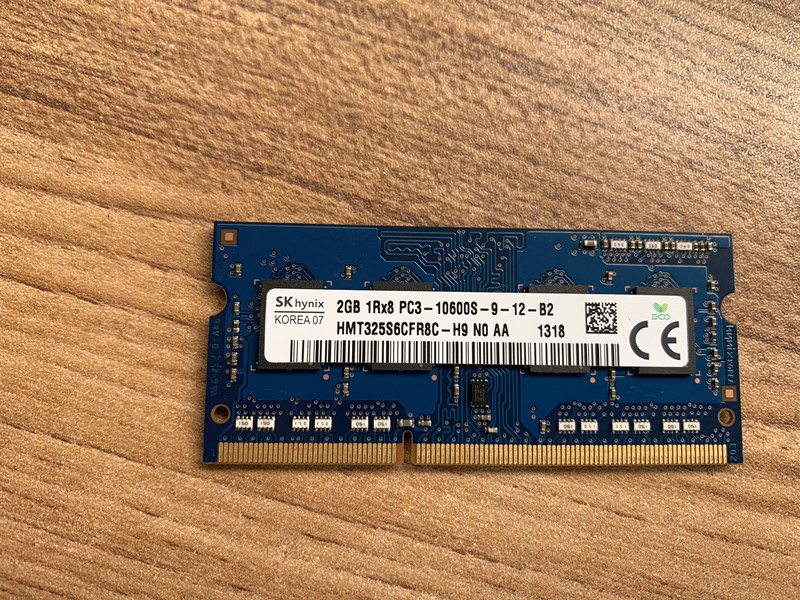
| RAM | Type (DDR3/DDR4/SO-DIMM), speed and capacity per the board's spec | — |
| Storage (SSD/HDD/M.2) | Form factor and interface (SATA/M.2); SSD is the reliable upgrade | — |
| CMOS battery | Usually a CR2032 coin cell — cheap, worth replacing proactively | — |
| Mainboard | Exact terminal model/board revision — confirm before ordering | — |
Browse boards in our mainboards category, and memory and drives in storage & memory. To pin down your exact terminal so we match the right board and RAM, use the terminal & model identification guide, and if the unit is also overheating, see the overheating & cooling guide. Send us a photo of the terminal’s label and we’ll match the correct parts before you order.
Frequently Asked Questions
My POS terminal has power and fans but the screen stays black — is it dead?
What do the beep codes at startup mean?
How do I reseat RAM and storage on a POS terminal?
What does clearing CMOS do, and when should I try it?
Could a connected peripheral be stopping the terminal from booting?
How do I know it's the mainboard and not a cheaper part?
Sources & further reading
- POS Terminal Turn-On Troubleshooting — Volcora Help Center
- Computer POST and Beep Codes — Computer Hope
- No POST Beep: Causes and Fixes — MiniTool
- Fix No POST Beep / No Input to Monitor on Startup — Wondershare Recoverit
- Troubleshooting a POS Machine That Won't Turn On — Made-in-China Insights
Related guides
Cash Drawer Wiring & Connection: RJ11/RJ12 Drawer-Kick, Printer-Driven vs USB, and the 12–24V Pulse
A POS cash drawer doesn't plug into the till — it's kicked open by a 12–24V pulse from the receipt printer down an RJ11/RJ12 cable. Get the interface, pins and voltage right and it just works. Here's the wiring, explained.
Read guide →Noisy or Failing POS Cooling Fan? Diagnose the Bearing, Clean It, and Match a Replacement
A grinding or whining POS fan is usually dust or a worn bearing — and ignored, it leads to overheating and shutdowns. Here's how to find the noisy fan, decide clean-or-replace, and match the right fan.
Read guide →Receipt Printing Faint, Dark, Partial or Streaked? Thermal Print-Quality Troubleshooting (Start With the Self-Test)
Faint, streaked or one-sided receipts almost always trace to a dirty head, the wrong paper, or a density setting — not a dead printer. One self-test print tells you whether the fix is software or hardware. Here's the full routine.
Read guide →Related categories
Featured parts in this guide
%20Sparta%20Riser%20Card/120c399634d85265f7a7595a979407ee_c48b4b186f0a2eea2b86d0d5a86c219e_s-l1600.jpg)
Need the parts mentioned in this guide?
Genuine OEM and quality-tested aftermarket parts for IBM, Toshiba, NCR, Diebold, Wincor and Hyosung systems — with worldwide shipping.